

5 Simple Steps to Using your Company Branded Email
- Log in to your DigitalEasy Customer Dashboard
- Go to Email Product Page
- Log in to your Titan Admin Panel
- Create Email Address(es)
- Proper Domain Name setup for Email
- How to Get Help
Overview
This help article will guide you through the basic steps to get started with your Branded Business Email by Titan. It will walk you through how to log in as the company email administrator, create email account(s) for yourself and/or employees, and ensure your domain setup is as needed to have properly functioning email.
*Note: These instructions guide you through the Company Email Administrator dashboard. You and your employees will log into their respective email accounts through a different user journey.
Let’s go through the steps:
Goto Product page
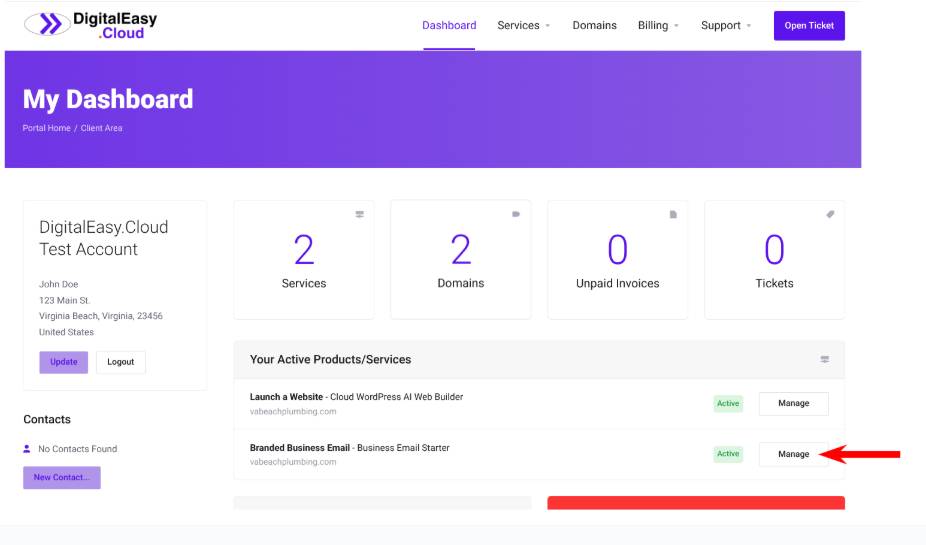
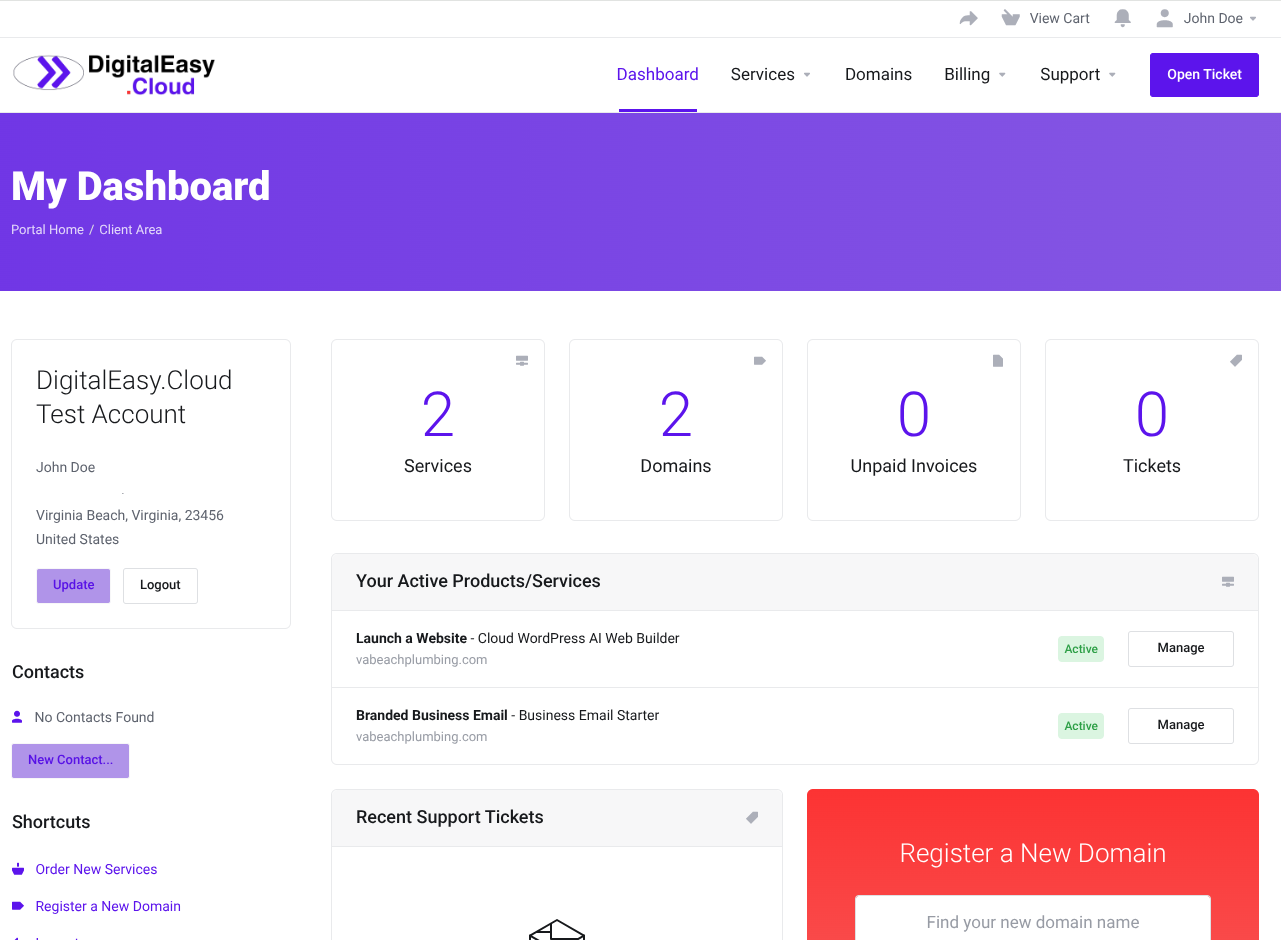
From your DigitalEasy Client Dashboard, click into the “Branded Business Email” Product Page
Login to titan admin
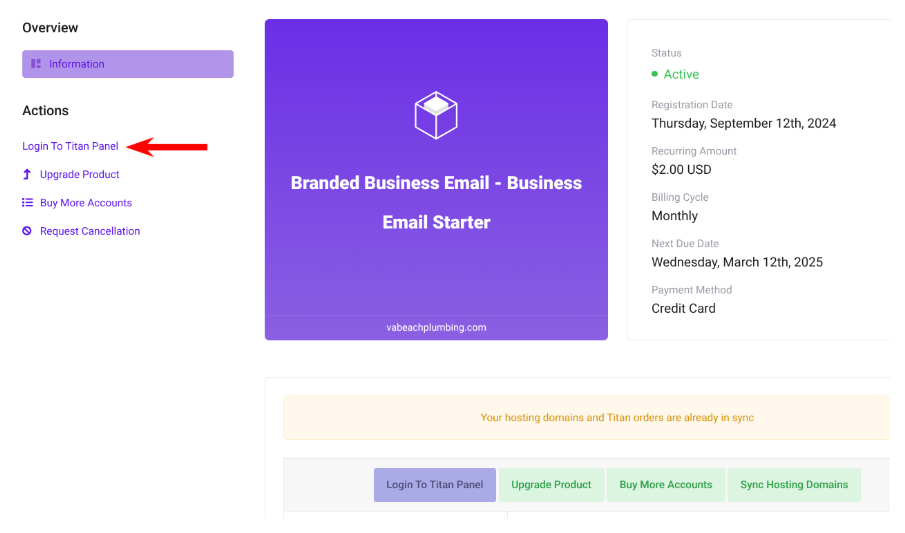
Click the “Login to Titan Panel” link to enter your corporate email administrator dashboard
Click create new email account
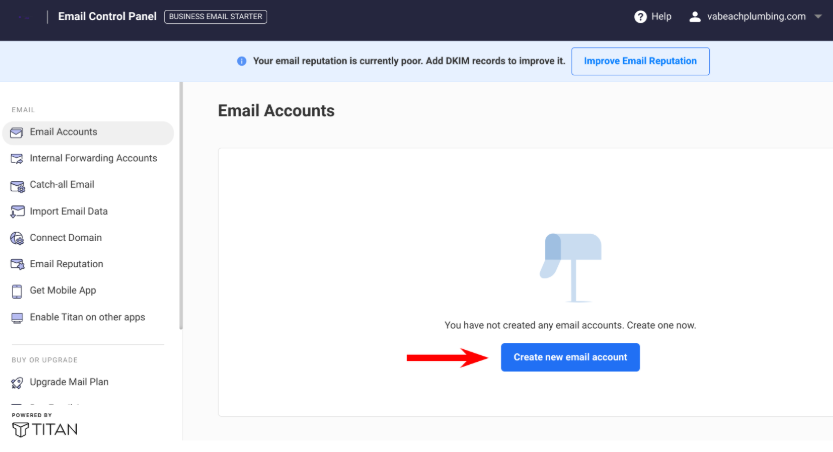
Here is where you define what email address(es) you want to have. (i.e. name@yourdomain.com, name2@yourdomain.com, sales@yourdomain.com, help@yourdomain.com)
***You can only create as many email accounts as you’ve paid for***
The Branded Business Email product pricing is a per user pricing. If you want additional email accounts, you can click the “Buy More Accounts” button in your DigitalEasy Client Dashboard Product Page for your “Branded Business Email” subscription.
email account creation
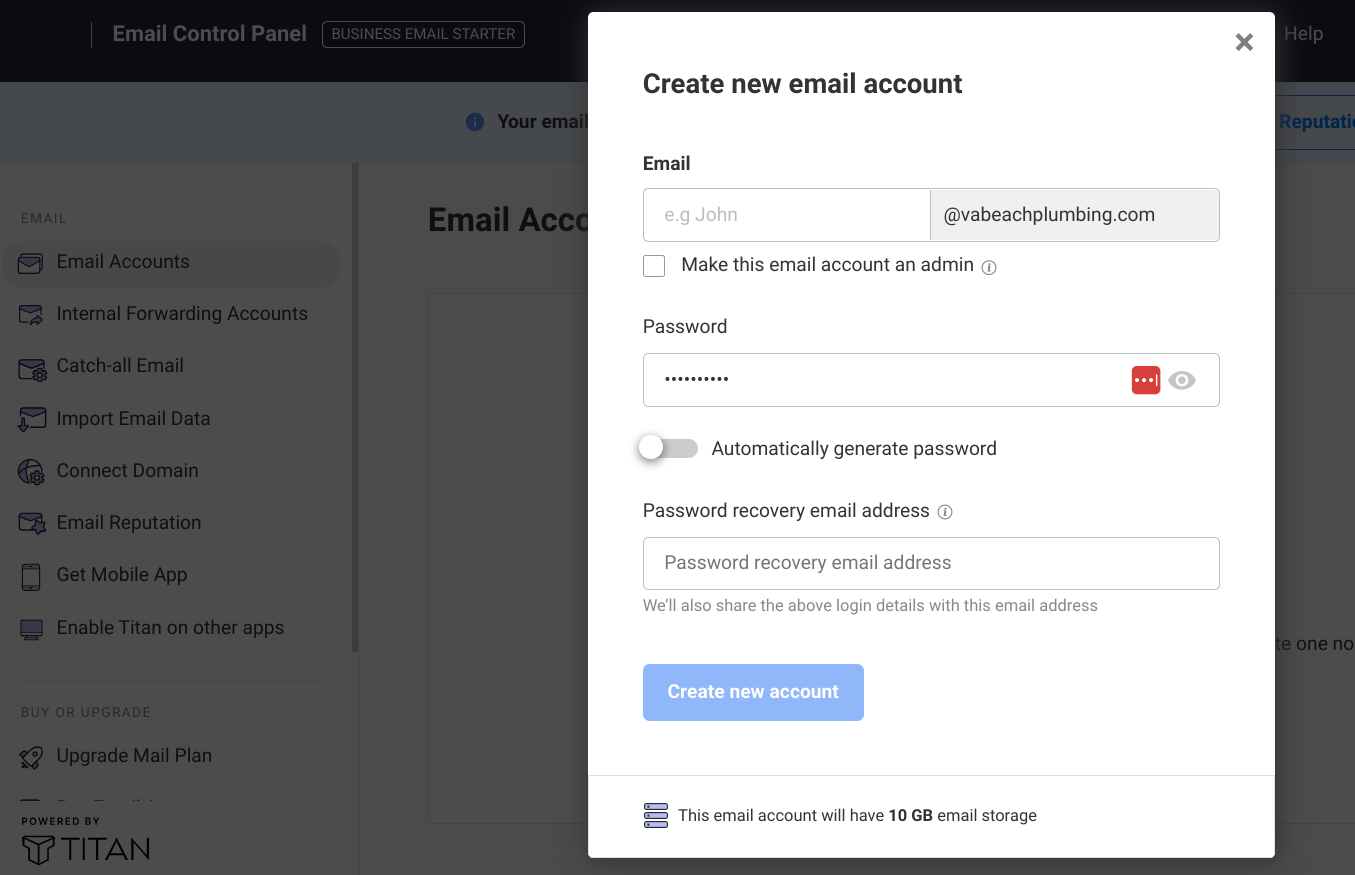
NAME: Define the email account name that will go before the “@yourdomain.com” (I.e. “bob”, “sally”, “sales”, “help”.
ADMIN: Make sure you do NOT check the “make admin” box unless you want the employee to have full administrator access to all corporate email accounts.
PASSWORD: You will set the initial/temporary password either manually, or allow it to auto-generate a password for you.
RECOVERY EMAIL ADDRESS: Enter the employee’s separate/personal email address. This email address will be the password recovery email address if the employee ever needs to reset their password. (Tip: if you do not have personal email addresses for your employees, you can set this to your administrator email address)
share email login details
- Once you’ve created the email account(s), you can provide all of your email users with their account information:
- Email Address
- i.e name@yourcompany.com
- Temporary Password
- Advise employees to change password immediately on first login
- Email Login URL
- https://app.titan.email
- Can be accessed on any computer web browser
- Titan Email iPhone or Android App
- Goto https://app.titan.email on any iPhone or Android to download Titan Email App
- Email Address
connect Domain
For email to work, the internet must be pointed to your domain name properly.
DOMAIN REGISTERED WITH DIGITALEASY:
If you registered your domain name through DigitalEasy, your Domain was automatically setup to connect both your website and email to the internet properly. NO ACTION REQUIRED.
DOMAIN TRANSFERRED TO DIGITALEASY:
If you transferred your domain name to DigitalEasy, once your domain transfer completes, your Domain is automatically setup to connect both your website and email to the internet properly. NO ACTION REQUIRED.
Note: It can sometimes take the internet 24 hours to see a new domain (or newly transferred domain), but often only takes a few minutes from you submitting your order (or your domain transfer completing).
You can check your connection is working inside your Titan Admin Panel in the “Connect Domain” section (shown below).

DOMAIN REGISTERED WITH OUTSIDE PROVIDER:
If you registered your domain name through an external provider (not DigitalEasy), you will need to manually point your domain name to your DigitalEasy Branded Business Email solution.
ACTION REQUIRED.
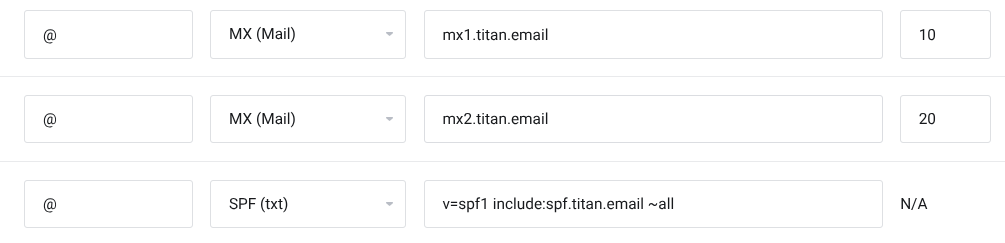
This requires DNS changes (done through your domain registration provider).
The necessary changes you will need to make are in the image below:
email reputation – retrieve dkim record
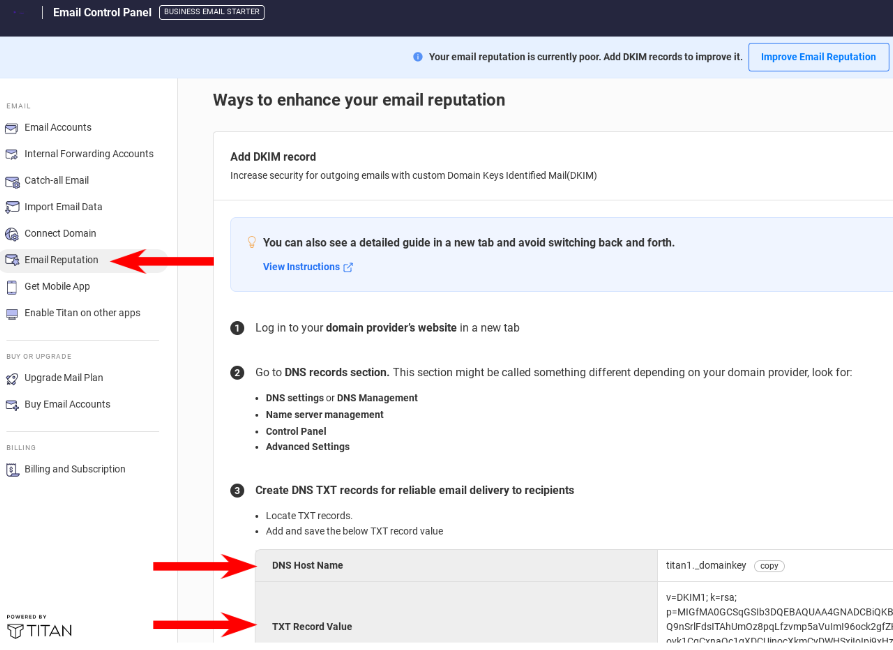
At this point, your email should be working. There is, however, one more important step. Some external email systems would like additional validation that your email account is legitimate (not spam). To accomplish this, you can add an additional DNS record to your domain, letting the internet know your email is legitimate. This is called a DKIM record.
Unfortunately, we could not automatically set this up for you, because your secret DKIM key is only available to you, as Admin, of your email service.
First, you need to RETRIEVE YOUR DKIM RECORD from the Email Reputation section of your Titan Admin Panel:
email reputation – update dns
You can add this DKIM record do your Domain’s DNS in your DigitalEasy Client Area –> Domains –> Manage Domain –> DNS Management section. Add the DKIM record details as a new TXT record and click Save.
Note: DNS changes can take up to 24 hours to be reflected on the internet, but often only take a few minutes.


Digtialeasy Classroom / help center
- You will find dozens of tutorials right inside of your Titan Email Admin Panel.
- Find more help articles, how-to guides and videos in the DigitalEasy Classroom at:
- or Submit a Ticket from your DigitalEasy Client Dashboard to get help from our Technical Experts
Leave a Reply